
What Discovery finds
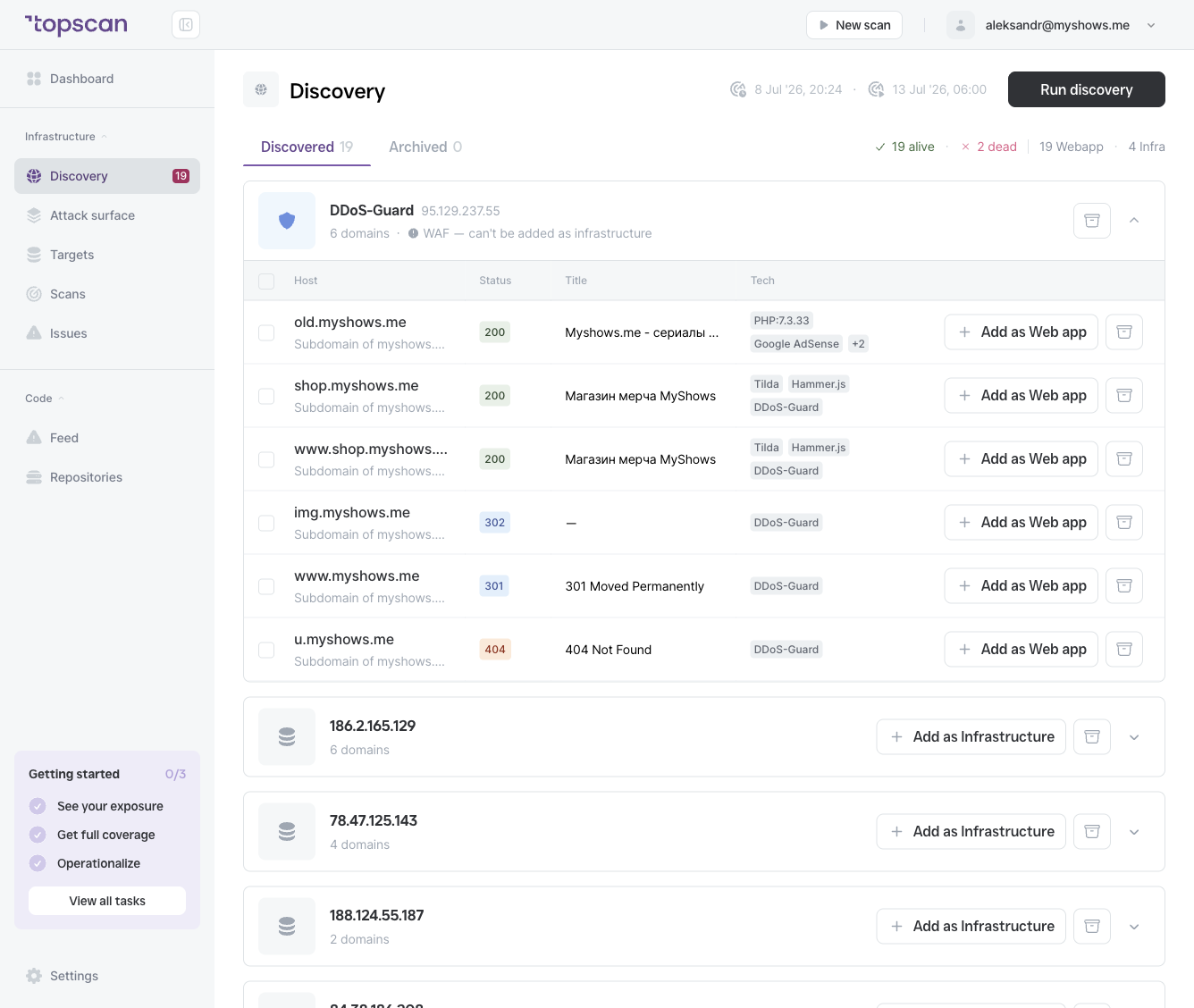
Discovery identifies internet-facing hosts related to your existing targets through passive techniques:
- Certificate Transparency logs — public logs of SSL certificates issued for your domain and its subdomains
- Subdomain enumeration — discovering subdomains related to your root domains
For every host it finds, Topscan also collects:
- HTTP status — the response code returned by the host (200, 301, 302, 404, …)
- Title — the page title, so you can recognize what the host is
- Tech — detected technologies (e.g.
PHP 7.3.33,Tilda,Google AdSense) and any CDN/WAF in front of it - Liveness — whether the host currently responds (alive) or not (dead)
Each discovered host shows its source (e.g. "Subdomain of example.com"), so you know how it was found.
Running Discovery
- Go to Discovery in the left navigation (under Infrastructure).
- Click Run discovery in the top-right corner.
- Topscan scans your existing targets and finds related hosts.
- Results appear grouped in the Discovered tab.
The header shows two timestamps: when Discovery last ran and when the next scheduled run is due. Discovery runs on demand and on a recurring schedule — run it manually after major infrastructure changes to catch new assets right away.
Reading the results
At the top of the list, summary counts give you the shape of your exposure at a glance:
- N alive · N dead — how many discovered hosts currently respond
- N Webapp · N Infra — how many look like web applications vs. infrastructure
Hosts are grouped into cards so related assets stay together:
- By IP address — all domains resolving to the same IP are grouped under it, with the number of domains on that address.
- By WAF / CDN — hosts sitting behind a WAF or CDN (e.g. DDoS-Guard) are grouped separately. These are marked "WAF — can't be added as infrastructure", because you'd be scanning the provider's edge rather than your own server.
Each host row shows its Host name, Status, Title, and Tech.
What happens after Discovery
Discovered hosts are not added as targets automatically. You review the results and decide what to do with each one:
- Add as Web app / Add as Infrastructure — start monitoring the host as a target
- Archive — set aside hosts you don't want to track; they move to the Archived tab
Hosts that are neither added nor archived stay in the Discovered list for the next time you review.