
Completed scans list
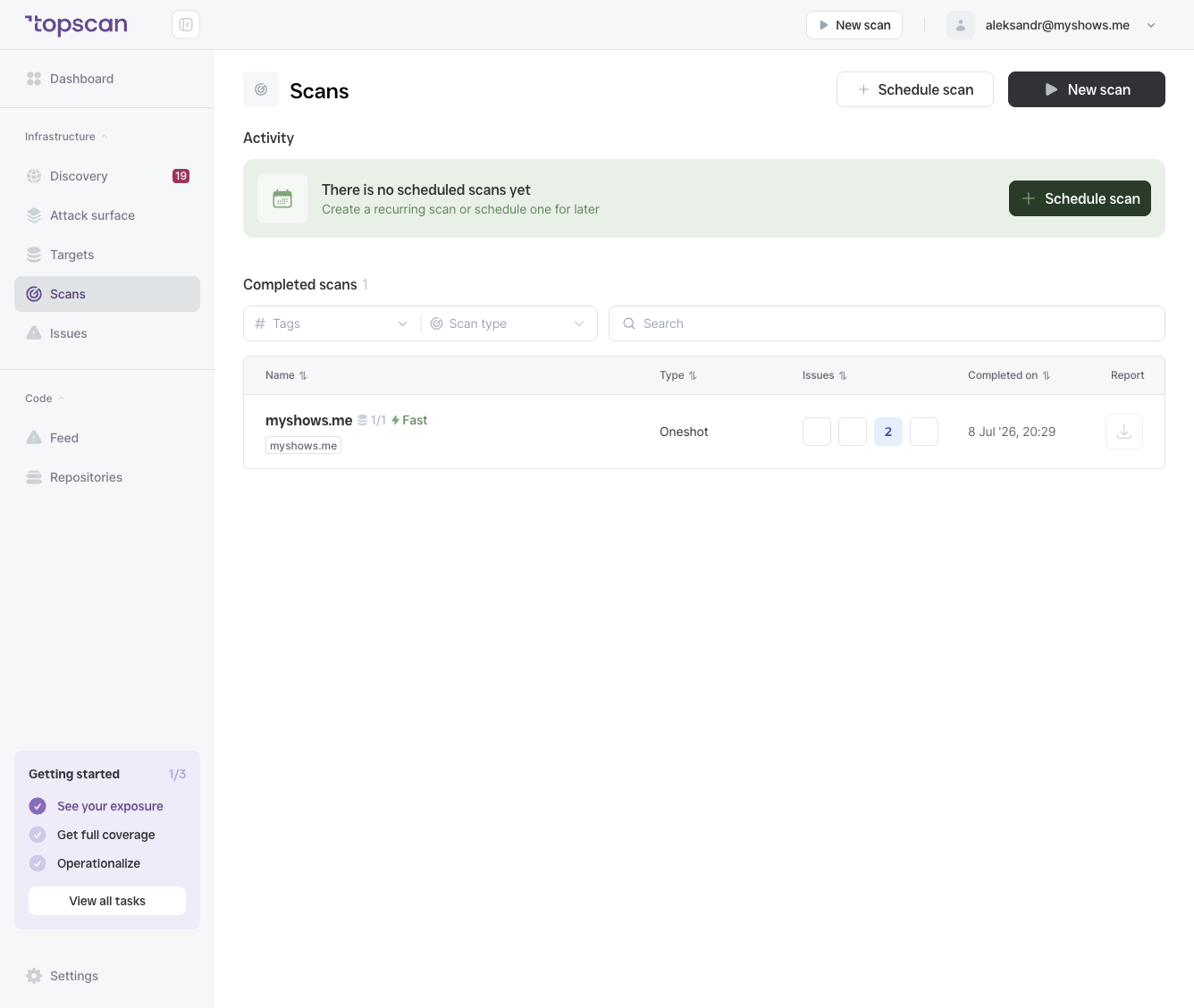
Each completed scan shows:
| Column | What it means |
|---|---|
| Name | Scan name and targets |
| Type | One-shot or Scheduled |
| Issues | Count of findings by severity (Critical, High, Medium, Low) |
| Completed on | Date and time the scan finished |
| Report | Download link for the PDF report |
Opening a scan
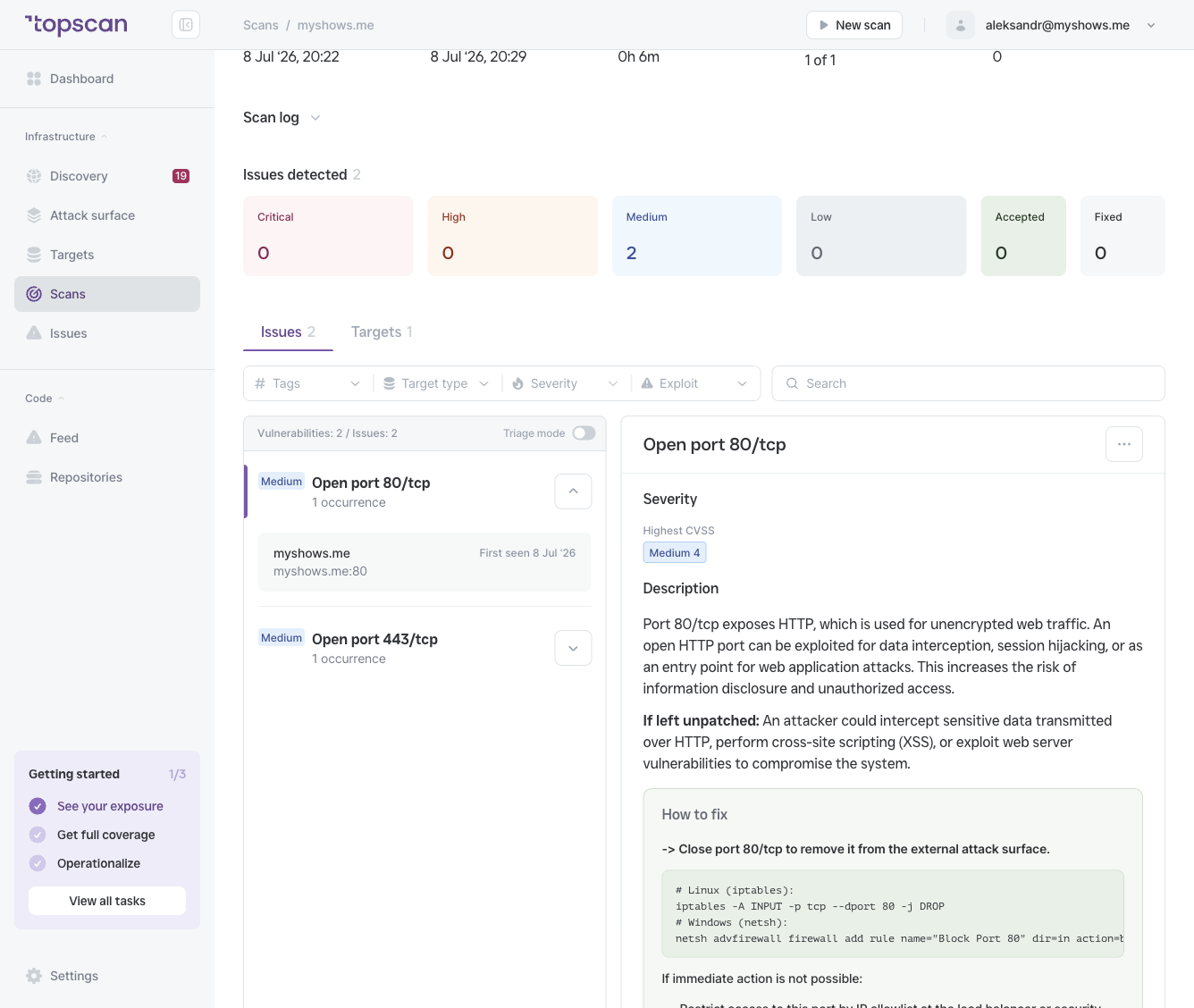
Click any completed scan to open its detail view. You'll see:
- Status — Completed or Failed
- Started on / Completed on / Duration
- Targets scanned — the list of targets included in this scan run, each with their issue counts
Individual issues from this scan are visible in the Issues section, filtered by the scan's targets.
Downloading a PDF report
Click the download icon in the Report column to generate a PDF report for that scan. The report includes:
- Scan metadata (date, targets, scan type)
- Issue summary by severity
- Full list of findings with descriptions and remediation guidance
Reports are useful for sharing results with your team, management, or external auditors.
New issues vs. recurring issues
Topscan tracks issues across scans. If a vulnerability was already present in a previous scan, it appears in your issues list with its original first_seen date — it is not counted as a new finding. An issue is only marked Fixed once it is no longer detected in a completed scan.