
When to snooze
- A patch is available but your next deployment window is in two weeks
- A fix is already in progress and you don't want the issue cluttering your queue
- An external dependency won't release a fix until a specific date
Snoozing is not the same as dismissing. The issue remains tracked and will return to Current automatically when the snooze period ends.
How to snooze an issue
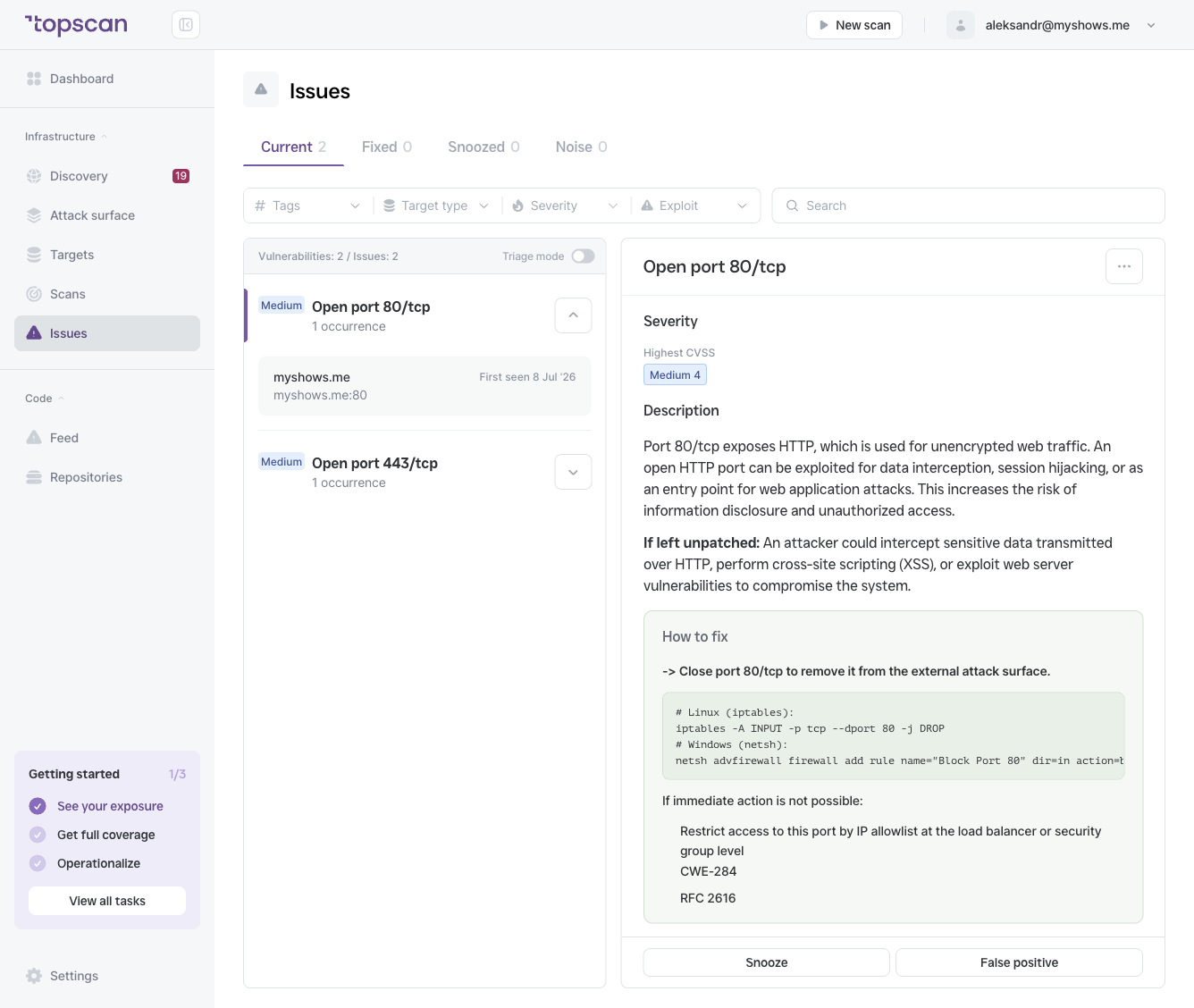
- Open the issue detail panel (click the issue in the list).
- Click Snooze at the bottom of the panel.
- Select a snooze duration.
- Confirm.
The issue moves to the Snoozed tab immediately.
Viewing and managing snoozed issues
Go to the Snoozed tab on the Issues page to see all issues currently on hold. From the detail panel of a snoozed issue you can:
- Unsnooze — return the issue to Current before the snooze expires
- See when the snooze is due to expire
Effect on Security Score
A snoozed issue pauses its SLA countdown for the snooze duration. It does not count as overdue while snoozed, so it does not penalize your Security Score during that period.
If the snooze expires and the issue has not been fixed, it re-enters Current and the SLA timer resumes from where it left off.