
Selecting what to scan
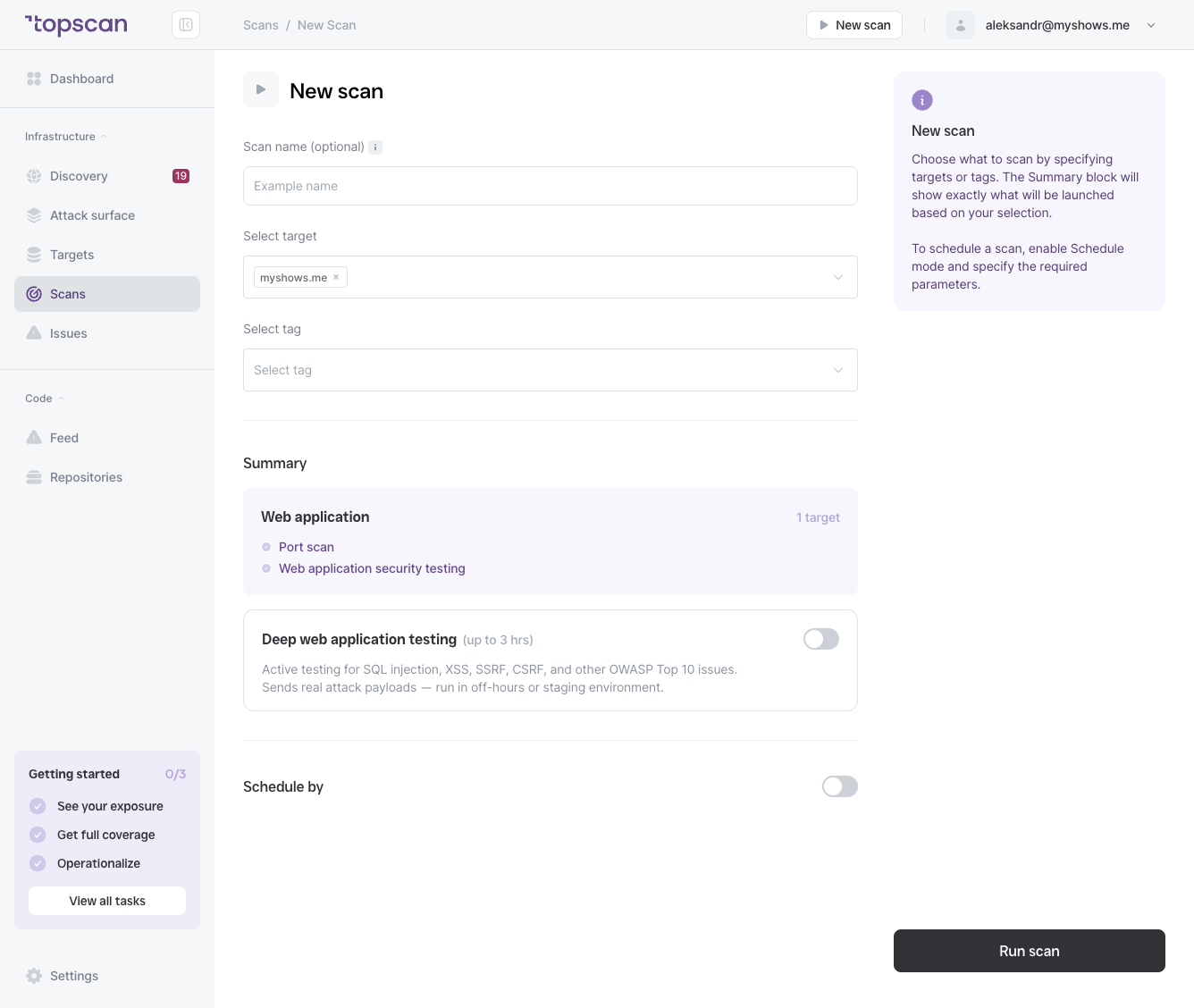
You can scan by target or by tag:
- Select target — pick one or more specific targets from your list.
- Select tag — scan all targets that carry a given tag. Useful for scanning a whole environment (e.g. "production") in one click.
You can combine both: select individual targets and a tag in the same scan.
Optionally give the scan a name to make it easier to find in the Completed scans list later.
What will run
You don't pick a scan type manually — Topscan chooses the right checks from each selected target's type. The Summary block shows exactly what will run before you start:
- Web Application targets → Port scan + Web application security testing
- Infrastructure targets → Port scan + network-level vulnerability checks (open ports, service versions, known CVEs for the detected software)
Deep web application testing
For web targets you can turn on Deep web application testing — active OWASP Top 10 checks (SQL injection, XSS, SSRF, CSRF, and more).
- It crawls the application and sends real attack payloads, so run it in off-hours or against a staging environment.
- It can take up to 3 hours per target.
- With the toggle off, the scan runs in its faster standard mode (shown as Fast in the Completed scans list).
Starting the scan
Click Run scan. The scan will appear immediately under Scans → In progress.