
When to use it
- Scan after every deploy — add the link as the last step of your deploy script, so each release is checked as soon as it goes live.
- CI/CD pipeline step — trigger a scan on merge to the main branch or on a release tag.
- Your own tooling — start a scan from a chat bot, a cron job, or an internal admin panel: anything that can send an HTTP request.
Generating an Event link
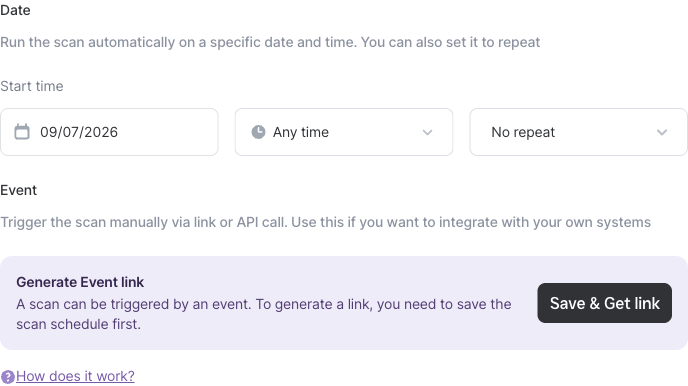
- Click Schedule scan on the Scans page (or New scan with the Schedule by toggle enabled).
- Select the targets or tags to scan and give the scan a recognizable name — it will appear in the scan list on every triggered run.
- In the Event section, click Save & Get link. Topscan saves the scan schedule first — the link always points to a saved configuration.
To view the link later, open Scans → Scheduled, then ⋯ → Edit on the schedule. The Event section shows two ready-to-copy fields:
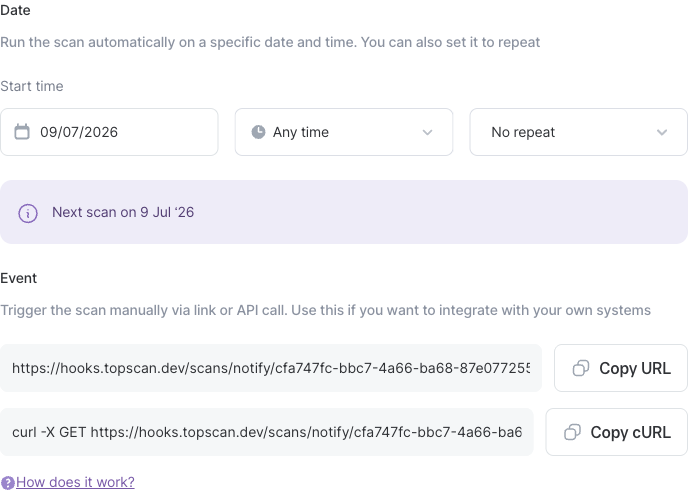
| Field | What it's for |
|---|---|
| URL | The trigger link itself — paste it into any system that can call a URL |
| cURL | A ready-made curl command for scripts and pipelines |
Using the link
Calling the link starts the scan — no API keys or auth headers required. The long random identifier in the URL is the secret itself.
A simple GET request is enough:
curl -X GET https://hooks.topscan.me/scans/notify/<your-link-id>
Topscan responds with the id of the started scan:
{"scanId":3812,"success":true}
The scan appears in Scans → In progress immediately, with the name and configuration of the schedule it belongs to. Results, notifications, and issue tracking work exactly as for any other scan.
Good to know
- Treat the link as a secret. Anyone who has it can start a scan in your workspace. Store it the way you store tokens in your CI/CD system.
- The date schedule and the Event link are independent. One saved scan can both run on a recurring schedule and be triggered by the link — or you can leave the date fields empty and use the link only.
- Each call is a normal scan run. It uses your targets and licenses the same way a manual run does, and shows up in the scan history.